1
2
3
4
5
6
7
8
9
10
11
12
13
14
15
16
17
18
19
20
21
22
23
24
25
26
27
28
29
30
31
32
33
34
35
36
37
38
39
40
41
42
43
44
45
46
47
48
49
50
51
52
53
54
55
56
57
58
59
60
61
62
63
64
65
66
67
68
69
70
71
72
73
74
75
76
77
78
79
80
81
82
83
84
85
86
87
88
89
90
91
92
93
94
95
96
97
98
99
100
101
102
103
104
105
106
107
108
109
110
111
112
113
114
115
116
117
118
119
120
121
122
123
124
125
126
127
128
129
130
131
132
133
134
135
136
137
138
139
140
141
142
143
144
145
146
147
148
149
150
151
152
153
154
155
156
157
158
159
160
161
162
163
164
165
166
167
168
169
170
171
172
173
174
175
176
177
178
179
180
181
182
183
184
185
186
187
188
189
190
191
192
193
194
195
196
197
198
199
200
201
202
203
204
205
206
207
208
209
210
211
212
213
214
215
216
217
218
219
220
221
222
223
224
225
226
227
228
229
230
231
232
233
234
235
236
237
238
239
240
241
242
243
244
245
246
247
248
249
250
251
252
253
254
255
256
257
258
259
260
261
262
263
264
265
266
267
268
269
270
271
272
273
274
275
276
277
278
279
280
281
282
283
284
285
286
287
288
289
290
291
292
293
294
295
296
297
298
299
300
301
302
303
304
305
306
307
308
309
310
311
312
313
314
315
316
317
318
319
320
321
322
323
324
325
326
327
328
329
330
331
332
333
334
335
336
337
338
339
340
341
342
343
344
345
346
347
348
349
350
351
352
353
354
355
356
357
358
359
360
361
362
363
364
365
366
367
368
369
370
371
372
373
374
375
376
377
378
379
380
381
382
383
384
385
386
387
388
389
390
391
392
393
394
395
396
397
398
399
400
401
402
403
404
405
406
407
408
409
410
411
412
413
414
415
416
417
418
419
420
421
422
423
424
425
426
427
428
429
430
431
432
433
434
435
436
437
438
439
440
441
442
443
444
445
446
447
448
449
450
451
452
453
454
455
456
457
458
459
460
461
462
463
464
465
466
467
468
469
470
471
472
473
474
475
476
477
478
479
480
481
482
483
484
485
486
487
488
489
490
491
492
493
494
495
496
497
498
499
500
501
502
503
504
505
506
507
508
509
510
511
512
513
514
515
516
517
518
519
520
521
522
523
524
525
526
527
528
529
530
531
532
533
534
535
536
537
538
539
540
541
542
543
544
545
546
547
548
549
550
551
552
553
554
555
556
557
558
559
560
561
562
563
564
565
566
567
568
569
570
571
572
573
574
575
576
577
578
579
580
581
582
583
584
585
586
587
588
589
590
591
592
593
594
595
596
597
598
599
600
601
602
603
604
605
606
607
608
609
610
611
612
613
614
615
616
617
618
619
620
621
622
623
624
625
626
627
628
629
630
631
632
633
634
635
636
637
638
639
640
641
642
643
644
645
646
647
648
649
650
651
652
653
654
655
656
657
658
659
660
661
662
663
664
665
666
667
668
669
670
671
672
673
674
675
676
677
678
679
680
681
682
683
684
685
686
687
688
689
690
691
692
693
694
695
696
697
698
699
700
701
702
703
704
705
706
707
708
709
710
711
712
713
714
715
716
717
718
719
720
721
722
723
724
725
726
727
728
729
730
731
732
733
734
735
736
737
738
739
740
741
742
743
744
745
746
747
748
749
750
751
752
753
754
755
756
757
758
759
760
761
762
763
764
765
766
767
768
769
770
771
772
773
774
775
776
777
778
779
780
781
782
783
784
785
786
787
788
789
790
791
792
793
794
795
796
797
798
799
800
801
802
803
804
805
806
807
808
809
810
811
812
813
814
815
816
817
818
819
820
821
822
823
824
825
826
827
828
829
830
831
832
833
834
835
836
837
838
839
840
841
842
843
844
845
846
847
848
849
850
851
852
853
854
855
856
857
858
859
860
861
862
863
864
865
|
# Linuxgraphy by Strabo
### Custom assets
- [UNIX layers image](./img/unix-layers.png)
- [UNIX directory tree](./img/unix-dir-tree.png)
- [mll-set.sh](./mll-set.sh)
### Presented at
&&bg Unofficial [FMI](https://fmi.uni-sofia.bg/en) class Discord server   *22.01.2023 || 18:00 - 21:00*
: In front of a tiny audience of other uni students
&&presentation
&¢ered &&clide
# Linuxgraphy by Strabo
*Made by [Syndamia](https://syndamia.com)*
&&lineb4 &&ftable
&&lineb1
&&font22
2000 years ago [Strabo](https://en.wikipedia.org/wiki/Strabo) published [Geography](https://en.wikipedia.org/wiki/Geography), in which he laid out the world as it was known to the Romans and Greeks.
&&lineb1
Today, I'll lay out Linux as it is known to me.
&&/font

&&lineb1
&&/table &&/clide &&/centered
&&slide &&font35
# Contents
&&ftable &&cont
1. Historical context
2. Structure of UNIX-likes
1. Shell
2. UNIX-style file system
2. Kernel
&&lineb2
3. Linux from the inside
1. Shells
2. Files and directories
3. Common configuration files
4. System management
4. Software licensing
&&/cont &&cont
5. What makes up a useful OS
1. Bootloader
1. Init system
2. Package manager
3. Desktop manager
6. War on distros
&&lineb5
7. Demo - setup from zero
&&/cont &&/table
&&/font &&/slide
&&slide
# 1. Historical context
&&lineb1
#### 1945 - 1955
You directly loaded instructions into memory and let it execute your "code" (processor instructions).
Nothing else ran on the machine.
This process was labor intensive: a qualified operator loaded your program, dumped the memory contents, remove any external media, reset the machine and load the next job.
#### 1956 - 1959
Computers became faster, but a lot of time was spend on managing jobs.
[resident monitors](https://en.wikipedia.org/wiki/Resident_monitor): very small programs, which always *resided* in memory, and *monitored* what the state of the current job was.
Jobs were loaded in series ([batches](https://en.wikipedia.org/wiki/Batch_processing)).
When the current job finished, memory would be dumped and the next one would automatically be loaded and started.
&&/slide
&&slide
#### 1960s
&&lineb1
Peripherals (tapes, punch cards, ...) were extremely slow.
[Multiprogramming](https://en.wikipedia.org/wiki/Computer_multitasking#Multiprogramming): the current job is waiting for a peripheral, another job would be started.
[Travel reservation system](https://en.wikipedia.org/wiki/Sabre_%28travel_reservation_system%29) by American Airlines: where travel agents would search, price and book services.
A computer system now had to support:
- User accounts with concurrent access
- Fast response time and ease of use
- Storage organization, also following the rise of disks
- Data communication links (often phone lines)
&&lineb1
More and more business started using computers, thanks to [minicomputers](https://en.wikipedia.org/wiki/Minicomputer), so demand for OS software increased.
&&/slide
&&slide
#### 1964 - 1969
IBM's [System/360](https://en.wikipedia.org/wiki/IBM_System/360) line of computers, each with expansion capabilities, backwards compatibility, all under one instruction set and operating system.
[Multics](https://en.wikipedia.org/wiki/Multics), an influential operating system that was designed for a General Electric mainframe.
Some of it's novel ideas include, but are not limited to:
- [Time-sharing](https://en.wikipedia.org/wiki/Time-sharing): sharing resources of a singular machine among many users (via [multiprogramming](https://en.wikipedia.org/wiki/Multiprogramming) and [multi-tasking](https://en.wikipedia.org/wiki/Computer_multitasking))
- [Single level store](https://en.wikipedia.org/wiki/Single-level_store) (aka [virtual memory](https://en.wikipedia.org/wiki/Virtual_memory)): Processes would write into contiguous memory, but in reality it is scattered and managed by the operating system.
- [Protection rings](https://en.wikipedia.org/wiki/Protection_ring): Allowing different levels of access to different resources (programs). In general, this also often requires a [CPU protected mode](https://en.wikipedia.org/wiki/Protected_mode).
- [Hierarchical file system](https://en.wikipedia.org/wiki/Directory_%28computing%29): Arbitrary directories with subdirectories, rather than just having files next to each other or having directories which could only contain files.
- [Command processor](https://en.wikipedia.org/wiki/Shell_%28computing%29) (that is separated from the OS): More on that later
&&/slide
&&slide
#### 1969: Death of Multics and birth of UNIX
Ultimately Multics grew too large and became unusable, unmaintainable and unchangeable.
In the beginning, programming was done mostly by [Bell Labs](https://en.wikipedia.org/wiki/Bell_Labs), with [Ken Thompson](https://en.wikipedia.org/wiki/Ken_Thompson) as one of the developers.
&&lineb1 &&ftable
&&font18

*Ken Thompson image by National Inventors Hall of Fame*
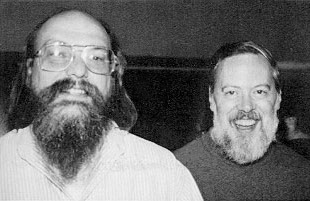
*Ken Thompson and Dennis Ritchie in 1973*
&&/font
&&cont
Thompson still had some desire to work on operating systems, after Bell Labs pulled out.
The tools he made while rewriting a video game [he made](https://en.wikipedia.org/wiki/Space_Travel_%28video_game%29) on a PDP-7 lead to a whole operating system: UNIX.
Based, expanded on and improved upon many of Multic's ideas, UNIX became the father of modern OSs.
&&/cont
&&/table &&/slide
&&slide
# 2. Structure of UNIX-likes
Ignoring [standards](https://unix.stackexchange.com/questions/14368/difference-between-posix-single-unix-specification-and-open-group-base-specifi/14415) and [specifications](https://unix.stackexchange.com/questions/87686/what-makes-an-operating-system-unix-like), in my opinion, from the point of a user, a UNIX-like OS has the following components:
&&lineb2
1. **shell**: A programmable replaceable command-line interpreter, with utilities for managing the whole system and support for pipelines and I/O redirection
2. **UNIX-style file system**: [Filesystem](https://en.wikipedia.org/wiki/Unix_filesystem) as a single rooted tree, objects (nodes) in the file system are [inodes](https://en.wikipedia.org/wiki/Inode) and an inode can be [(at least)](https://en.wikipedia.org/wiki/Unix_file_types) either a regular file, directory or devices. Permissions per users and group.
3. **kernel**: Program that manages all communication and operations between the hardware and software
&&lineb4
&&font18 *For now we'll generally just look over some of the common stuff and go into detail later, while in Linux.* &&/font
&&/slide
&&slide &&font35
## 2.1. shell
&&lineb2 &&ftable
&&cont
The operating system is divided into layers, [like an onion](https://youtu.be/-FtCTW2rVFM?t=57).
Only the kernel has access to the hardware.
shells and executables (binaries) have access to the kernel.
shells provide user interfaces, [both](http://en.wikipedia.org/wiki/Shell_%28computing%29) command-line and graphical.
While on the topic of UNIX, we'll only discuss the former.
&&/cont
&¢ered  &&/centered
&&/table &&/font &&/slide
&&slide
Command-line shells operate solely with text, usually with only ASCII characters.
There are usually two terms used when talking about connecting to a computer (to the shell), those are "terminal" ("console") and "teleprinter" ("teletype").
&&table
Video displays became widely available in the late 1970s, so before that access was done with a "teleprinter", a typewriter-printer combo.
&&font18

*Teletype Model 33 by [Arnold Reinhold](https://commons.wikimedia.org/wiki/User:ArnoldReinhold)*
&&/font
&&tarow
With the advent of computer displays, teleprinters were replaced with terminals, video display-keyboard combo.
Thanks to the widely popular [VT100](https://en.wikipedia.org/wiki/VT100), almost all terminals support [ANSI escape codes](https://en.wikipedia.org/wiki/ANSI_escape_code).
&&font18

*DEC VT100 by [Jason Scott](https://www.flickr.com/people/54568729@N00)*
&&/font
&&/table &&/slide
&&slide
Today we don't usually use such specialised hardware, but the names persist with slightly different meanings.
[Virtual Terminal](https://en.wikipedia.org/wiki/Virtual_console) (Console): on some modern UNIX-likes (like Linux), the kernel/OS provide special devices, where a console is directly implemented/simulated with the connected computer and display. Sometimes could be called "tty".
- systems that don't provide it usually expose another way to connect a console (now external hardware and/or software is required), like a [serial](https://en.wikipedia.org/wiki/Serial_port) port
[Terminal Emulator](https://en.wikipedia.org/wiki/Terminal_emulator): a special program that emulates a virtual terminal (within another display system)
[Pseudoterminal](https://en.wikipedia.org/wiki/Pseudoterminal) (pty): a device that behaves, from the point of a user, like a terminal (emulator), but could do other additional things
- ssh, a program to remotely connect to a device's shell, establishes a pseudoterminal. You use your (local) terminal to send and receive text to a remove terminal.
&&/slide
&&slide &&font27
Most commands are regular programs, which exist in any folder (specified inside the variable "PATH").
Each command can be given parameters, separated by spaces, each (by convention) being either text values or options (switches).
Options usually start with a hyphen `-` (like `-c` or `-current-time`) and often support abbreviations (`-a -b -c` to `-abc`).
Newer conventions also allow start with two hyphens `--` (`--current-time`), though if shown as-is indicate the rest is a string.
More rarely you might see `--OPTION=VALUE` or just `OPTION=VALUE`.
UNIX shells always have at least these additional functionalities:
- pipelines: being able to redirect the output from one command to another without limit
```
command1 [args...] | command 2 [args...] | ...
```
- I/O redirection: redirection of input and output, allowing insertion of input from a file or storage of output into a file:
```
command [args...] < filepath
command [args...] > filepath
```
&&/font &&/slide
&&slide
## 2.2. UNIX-style file system
- Rooted singular tree of directories (the root folder of which is called "root", denoted with a "/")
- Each tree object (node) is an [i(ndex)node](https://en.wikipedia.org/wiki/Inode), containing type, ownership, access, internal data and any other metadata, but **not** name!
- Directory inodes (files) contain a table with rows of names and inode numbers, mapping a file name to it's contents. Each row is called a [hard link](https://en.wikipedia.org/wiki/Hard_link). Every directory has a hard link to itself, called ".", and a hard link to it's parent, called "..".

&&/slide
&&slide &&font27
The main attributes that every inode has are as follows:
- [file type](https://en.wikipedia.org/wiki/Unix_file_types): Each inode represents some sort of file (data), but a "file" can also be a directory or device, so we need to know how to handle it.
There are 7 main types (but there can exist more, depending on OS):
&&lineb1
+ **regular**: just a plain old file
+ **directory**: as explained, a file containing hard links to other files. Each directory is allowed to appear only once in a single parent.
+ **symbolic link**: points to any file (or directory). It contains the (relative) path to that object (as a simple string), so a symlink could even not be valid.
+ **FIFO special**: aka [named pipe](https://en.wikipedia.org/wiki/Named_pipe), a special type of regular file, where at any moment only one process can read from it and one can write to it. It takes the concept of shell pipes to inter-process communication.
+ **block special**: a device which is randomly accessible, like a hard drive or cdrom drive.
+ **character special**: devices which are accessed via serial streams of input or output, like keyboards, mice, graphics cards and teletypes
+ **sockets**: file for inter-process communication. Compared to FIFO specials, they can be used by more than two processes, used in both direction and support [file descriptors](https://en.wikipedia.org/wiki/File_descriptor) and packets
&&/font &&/slide
&&slide
#### Side-step into users and groups
&&lineb3
A user in UNIX is essentially a small collection of data, most important of it being a unique ID (number), a name (string), a group id (number; files created by the user are in that group) and a password.
Groups are also small collections of data, but much simpler, comprised only of a unique ID (number), a name (string) and a list of users that are "in" the group. Their main purpose is to simplify access control.
User with ID 0 is called root, it is the "system administrator", all actions made by the system itself are done as that user.
Every user has their own "home" folder (under "/home/USERNAME/", except for root, which is "/root/"), in which they store personal files, as well as user-specific configuration files.
&&/slide
&&slide
- [file permissions](https://en.wikipedia.org/wiki/File_system_permissions): control the freedom of a user to read (navigate for directories), change and execute files
File permissions are split into three sets: what the owner can do, what group members can do and what anyone else can do.
Each set contains a mix of three permissions: **r**ead, **w**rite and e**x**ecute, and each set stores some combination of them.
&&lineb1
Each is represented by a bit in the order above (`101` means you *can* read, *cannot* write, *can* execute) and the overall permissions are often shown as a three digit number or character string.
Example: `111101100` will be shown as `754` or `rwxr-xr--`
- link count: the amount of hard links that point to the inode. Every directory inode contains (normally) exactly two: one from the parent and one from itself ("."). A file is only deleted where there are no hard links left to it (or when there is only one for a directory).
- User ID of owner, Group ID, file size and timestamps
&&/slide
&&slide &&font35
## 2.3. Kernel
The kernel has the core functionality of the operating system and bridges the gap between programs and hardware.
Some important subsystems include scheduling, file, device, process and memory management.
To preserve the [everything is a file](https://en.wikipedia.org/wiki/Everything_is_a_file) methodology, devices and processes can be handled as files (inside `/dev` and `/proc`).
They (often, in modern kernels) aren't actual files on a hard drive, but "virtual" files, where operations on them are handled in a different manner than normal by the kernel.
&&lineb1
Linux is **not** an operating system, it is a kernel!!!
&&/font &&/slide
&&font27 &&slide
# 3. Linux from the inside
Enough theory, time to have some fun and learn Linux!
We'll be using [Linux Minimal Live](https://ivandavidov.github.io/minimal/#home) (just a bootable ISO) because:
- very small, comprised of only the Linux kernel, GNU C library and Busybox
- made by a fellow Bulgarian &&bg
We're going to explore and look around the following stuff:
- **Shells**: What a modern shell would often support on a Linux based OS
- **Files and directories**: Naming conventions and commands to work with them
- **Common configuration files**: Relevant configuration files, their purpose and syntax
- **System management**: Other commands with which to modify your system
&&/slide &&/font
&&clide &&font18
#### If you're following at home
Owing to it's size, not everything we need comes out of the box, so I created [a script](./mll-set.sh) which installs what's needed.
If you want to try it out yourself, after booting up Minimal Linux Live, type out and run:
```
wget -q https://syndamia.com/talks/linuxgraphy-by-strabo/mll-set.sh && chmod +x mll-set.sh && ./mll-set.sh
```
If you get the message `TLS certificate validation not implemented`, ignore it.
In summary, it installs bash, coreutils and shadow "packages" (from [http://s.minos.io/archive/bifrost/x86\_64](http://s.minos.io/archive/bifrost/x86_64)) to /usr/local/bin, creates /etc/passwd, /etc/bashrc and /etc/profile with some values in them and starts bash.
&&/font &&/clide
&&slide
## 3.1. Shells
- [Job control](https://en.wikipedia.org/wiki/Job_control_%28Unix%29): Management of currently running groups of processes
+ `&`: A process can be ran in the background with an ampersand (&) at the end of the command:
```
command [args...] &
```
+ `Ctrl+z`: suspend (stop but leave in the background) the currently running (foreground) job
+ `bg`: start a suspended job in the background
+ `fg`: resume the last job to be put in the background and make it the current job with which we're interacting
+ `jobs`: list all active (background) jobs
&&/slide
&&clide
- continuation
+ Every job is identified with a Job ID (number), which you can use by prepending a percentage sign. Example, to resume the job with JID 4:
```
fg %4
```
+ For managing everything, usually there is a job table.
Upon shell termination, the shell tells all jobs in that table to terminate and waits for them.
`disown`: remove a job from the job table
+ `kill`: send a signal to the process or job. Then that process will have to handle it accordingly.
Common ones are `-KILL` to immediately stop the process, `-QUIT` to quit it, `-ABRT` to cancel the current action, `-TERM` shut down (orderly), `-STOP` shut down (forcefully)
&&/clide
&&slide &&font27
- [heredoc](https://en.wikipedia.org/wiki/Here_document): File literal, meaning it is a user "string" which is interpreted as a file
+ start with `<< NAME`, where NAME can be anything you want, it is used to mark the beginning and end of a heredoc. `<<` is also a redirection symbol
+ on every new line write out your text, all characters will be preserved
+ to end it, write out `NAME` on the beginning of a new empty line. Example:
```
cat << MYFILE
This is
some
text
MYFILE
```
- control operators: Control what command is executed, depending on [exit status](https://en.wikipedia.org/wiki/Exit_status)
+ `expr1 && expr2`: Run expr2, only if expr1 exited successfully
+ `expr1 || expr2`: Run expr2 if expr1 exited unsuccessfully
+ `expr1 ; expr2`: Run expr2 after expr1 finished (no matter how)
+ Every program returns an exit status (number) to the shell, zero being a successful closing, and all others indicating failure.
&&/font &&/slide
&&clide &&font27
- [redirection](https://en.wikipedia.org/wiki/Redirection_%28computing%29): Outside of having `<` and `>` for I/O redirection, often there is also
+ `>>`: Acts like `>`, putting text into a file, but rather than overwriting everything, it appends it
+ `<<`: As explained, for heredocs
+ `<<<`: To the right is a string ([herestring](https://en.wikipedia.org/wiki/Here_document#Here_strings)), and it is interpreted as a file
```
cat <<< "Hello World!"
```
+ Standard input, standard output and standard error are all files with which the shell works.
Typing text in the shell puts it into stdin, command output are put into stdout (and shown to the user) and errors are put into stderr (also shown to the user).
Each one of them is numbered from 0 to 2, and you can specify redirection by appending or prepending it to the redirection symbol.
* `N>outputfile`: redirects the output from standard stream N into outputfile
* `N>&M`: redirects the output from standard stream N into standard stream M
* `N<inputfile`: redirects input file contents to standard stream N
* `N<&M`: redirects standard stream M to standard stream N
&&/font &&/clide
&&clide &&font27
- [built-in test command](https://en.wikipedia.org/wiki/Test_%28Unix%29): With `test` you can do conditional expressions. You can also often use brackets `[ args... ]` instead of `test args...`
+ Some of the available file checks
* `-e FILENAME`: FILENAME exists
* `-d FILENAME`: if FILENAME is a directory
* `-h FILENAME`: if FILENAME is a symbolic link
* `-w FILENAME`: you can write in FILENAME
+ Some of the available string checks
* `-n STR`: string STR has nonzero length
* `-z STR`: string STR has length zero
* `STR1 = STR2` and `STR1 != STR2`: self explanatory
+ Some of the available number checks
* `INT1 -eq INT2`: equal integers
* `INT1 -gt INT2`: INT1 > INT2
* `INT1 -gt INT2`: INT1 >= INT2
+ Operators: `!` - negation, `-a` - binary AND, `-o` - binary OR, parentheses for grouping (escaped with `\`)
&&/font &&/clide
&&slide
- [scripting support](https://en.wikipedia.org/wiki/Shell_script): Rather than running a series of commands manually, you can put them all in a file and run that
+ `#`: Everything between a # and the end of the line denotes a comment
+ `#!`: If on the first line of the file, is treated as a [shebang](https://en.wikipedia.org/wiki/Shebang_%28Unix%29), which specifies what interpreter to be used for the script
+ Each command (line) is executed in series, from top to bottom
- compound commands: Shells also often offer more advanced structured, with which to more easily write complex expressions
&&/slide
&&slide
## 3.2. Files and directories
&&lineb1
- `/bin`: main command programs (binaries), used by users
- `/etc`: system configuration files
- `/sbin`: command programs, used for the system operation
- `/usr`: other system resources
+ `/usr/bin`: all other user command binaries
+ `/usr/lib`: library files
+ `/usr/local`: local, system software
+ `/usr/share`: architecture independent data, like manuals
- `/var`: variable data, like logs and cache
- `/dev`: devices
- `/home`: home directories of all users
- `/lib`: libraries and kernel modules
- `/mnt`: mounted temporary filesystems
- `/proc`: process information
- `/root`: home directory for the root user
&&/slide
&&slide
### General file system commands
- `mkdir`: create directories
- `rm`: remove a (hardlink to) file or directory
- `shred`: overwrite file contents
- `mv`: move file (or directory) to another directory
- `cp`: copy a file
- `ln`: create hard (or soft, with `-s`) links to files (inodes)
- `ls`: list directory contents
- `dd`: do many things with files, like modifying and duplicating data across devices and partitions, (basic) data recovery and generating files
- `du`: estimate file usage
- `stat`: display status for file system or file system
- `chwon`: change owner of an inode
- `chgrp`: change group of an inode
- `chmod`: change file modes
- `find`: search for a file inside a directory (recursively)
&&/slide
&&slide
### Working with text (files)
- `echo`: prints a given string to standard output
- `cat`: sequentially prints files to standard output
- `less`: view files with support for scrolling
- `grep`: searches for matches in a file, using simplified regular expressions. Often there is `egrep`, which allows for extended regex and `fgrep` where strings are matched as-is.
- `sed`: filter and transform text from files, according to regex
- `tr`: translate, map (more than one to one for example) and delete characters
- `cut`: remove parts of text from each line
- `head`: print the first lines (or characters) of a file
- `tail`: print the last lines (or characters) of a file
- `strings`: find embedded text inside binary files
- `truncate`: shrink or extend the size of a file
- `wc`: count words inside file
- `diff`: compare files and show their differences
&&/slide
&&slide
### Working with devices
- `mount`: bind another file system to a location in the file system
- `umount`: remove binding to a file system
&&/slide
&&slide
## 3.3 Common configuration files
&&lineb1
- `/etc/group`: the data for all groups is stored here, in the format
```
GROUPNAME:PASSWORD:GID:USERS...
```
- `/etc/passwd`: the data for all users is stored here, in the format
```
USERNAME:PASSWORD:UID:GID:USERINFO:HOMEDIR:SHELL
```
- `/etc/shadow`: stores other user data, especially the password as an encrypted string, in the format
```
USERNAME:PASSWORD:LASTCHANGED:MINBETWEENCHANGES:MAXBETWEENCHANGES:WARNEXPIRE:INACTIVEDAYS:EXPIRE
```
&&/slide
&&clide
- `/etc/fstab`: mountings of devices to the file system, read on boot by mount
- `/etc/hosts`: list of host names (domain names) and their corresponding IP address, when a DNS server doesn't do the job
- `/etc/bashrc`: global defaults and aliases used by the bash shell
&&/clide
&&slide
## 3.4. System management
- System information
+ `date`: display current date and time
+ `hostname`: show (or set) the systems hostname (network name)
+ `free`: display free memory on the system
&&/slide
&&clide
- Users and groups
+ `useradd`: creates a new user (with a password)
+ `userdel`: remove a user and all of his files
+ `usermod`: modify a user account, including his name and groups
+ `passwd`: change password of a user. With `-l` user could be locked (impossible to log in)
&&lineb1
+ `groupadd`: create a new group
+ `groupdel`: remove a group
+ `groupmod`: modify an existing group
&&lineb1
+ `w`: show who is logged in and what they are doing
+ `who`: show who is logged in
+ `whomai`: print username
+ `login`: establish a new connection to the system
&&/clide
&&slide
# 4. Software licensing
It is important to note that most software in Linux, including the kernel itself, is under a variety of open licenses.
An open license is a license which allows others to reuse the original work, under some restrictions.
For software, such a license is applied to the source code from which the original application was made.
Some commonly used ones, with a (NON-LEGALLY BINDING) summary include:
- MIT: the author is not responsible for anything that the code does
- BSD-3-Clause: use the same license (copyleft), the author is not responsible for anything that the code does
- GNU GPL: disclose the original project and use the same license (copyleft)
This is important, since pretty much everything can be freely modified by anyone (for the better or worse, but generally better).
&&/slide
&&slide
# 5. What makes up a useful OS
We talked about the modularity of a Linux-based operating system.
Overall, these are the main elements that make up a desktop operating system you might want to use:
&&lineb3
1. **Bootloader**: load the kernel and operating system
2. **Init system**: well managed way to start everything inside the OS
3. **Package manager**: way to manage our binaries
4. **Desktop manager**: graphical shell
&&/slide
&&slide
## 5.1. Bootloader
When a computer boots, it needs to start an operating system, but you can't expect it to know how to boot any operating system.
Skipping over the details, the computer starts a small program called the bootloader, which handles loading the OS.
On Linux, the most used one is called [GRUB](https://en.wikipedia.org/wiki/GNU_GRUB).
With it you can also specify which kernel to load, with which parameters to load the kernel and which OS to start.
&&/slide
&&slide
## 5.2. Init system
In Minimal Linux Live, the whole system is started by some hard written scripts, this isn't very modular and extensible, that is why we need a special system.
Generally, the [init system](https://en.wikipedia.org/wiki/Init) loads a series of services, where each service is just a file that specifies what and how something needs to be ran.
The most common init systems are
- [systemd](https://en.wikipedia.org/wiki/Systemd), which also aims to also provide easy system configuration
- [openrc](https://en.wikipedia.org/wiki/OpenRC), a simple and modern system
&&/slide
&&slide
## 5.3. Package manager
Running a program is as simple as putting the executable in a nice folder, like `/usr/bin`.
However this process isn't very convenient if you're only using a shell and more tedious if using a graphical shell.
The solution is to have all programs in one location, where you can download, install and potentially update a program with one simple command, just using the program's name.
Other good features include installing dependencies and checking if a package is tampered with.
There is another "type" of package managers, those similar to `portage`, where packages are actually instructions on how to download and compile a specific version of the program.
&&/slide
&&slide
## 5.4. Window systems
A widow system is your graphical shell: the graphical way to interact with your computer (the kernel).
It's main components are:
- **Window manager**: the overall system with which you create, remove, resize, etc. windows. They are generally separated into two types:
+ Stacked: this is what you know, a windows are just rectangles floating about, and can be put one over each other
+ Tiled: windows take up a predefined (but changeable) portion of the screen
- **Compositor**: windows have an unseen buffer, allowing them to be be processed beforehand. This allows for adding transparency, animation effects and more.
- **Session manager**: application that manages the window managers, allowing to use different managers or for multiple users to start their own graphical sessions.
&&/slide
&&slide &&font27
# 6. War on distros
A distribution is a complete set of of all applications that we've talked so far.
Overall, there are five distributions from which 90% of all other distros are based upon:
1. Slackware: as the oldest still maintained distro, it served as inspiration for a lot of other distros. It aims to be as simple and as close to UNIX as possible.
2. Debian (and Ubuntu): it is the most popular distribution (if we also include Ubuntu, since they're so similar). Ubuntu aims to be modern and fancy, while Debian aims to be as stable as possible, which makes it the most popular in server usage.
4. Gentoo: the distribution which defined non-binary software distribution
5. Arch Linux: a very popular and modern distribution with the goal of providing the latest and greatest software.
We haven't touched too much, but Linux distributions aren't limited to desktop or server computers.
Two more uncommon ones are:
1. AOSP: the base of the whole Android operating system
2. OpenWRT: a router operating system
&&/font &&/slide
&&slide &&font35
# 7. Demo - setup from zero
&&lineb3
Now for the best part: we'll be installing a Linux distribution from a laptop running Windows 10!
I've chosen to install [Linux Mint](https://linuxmint.com/), since it is generally targeted towards newcomers and will feel familiar enough to Windows users.
Currently there won't be an official recording of the process, you should've been here live!
&&/font &&/slide
&&clide &&font35 &¢ered
# Thank you for your time
&&/centered &&/font &&/clide
&&slide &&font18
# Sources
All of these contain, at most, small paraphrased sentences in the slides.
They mostly served as personal educational/reference tools.
- [wikipedia](https://en.wikipedia.org/) and [stackexchange](https://stackexchange.com/) has been used extensively and linked where appropriate.
- [CS416 - Operating Systems Design](https://people.cs.rutgers.edu/~pxk/416/index.html) by [Paul Krzyzanowski](https://people.cs.rutgers.edu/~pxk/rutgers/) at [Rutgers State University](https://www.cs.rutgers.edu/)
- [Origins and History of UNIX, 1969-1995](https://web.archive.org/web/20220713165958/https://homepage.cs.uri.edu/~thenry/resources/unix_art/ch02s01.html) from [The Art of Unix Programming](https://web.archive.org/web/20220611160552/https://homepage.cs.uri.edu/~thenry/resources/unix_art/index.html) by Eric Steven Raymond
- [Ken Thompson interviewed by Brian Kernighan at VCF East 2019](https://www.youtube.com/watch?v=EY6q5dv_B-o) by [Vintage Computer Federation](https://vcfed.org/)
- [Hard links and Unix file system nodes](https://teaching.idallen.com/dat2330/04f/notes/links_and_inodes.html) from [DAT 2330 Introduction to Operating Systems](https://teaching.idallen.com/dat2330/04f/) by [Ian D. Allen](http://www.idallen.com/)
- [/usr hierarchy](https://www.linuxbase.org/betaspecs/fhs/fhs/ch04.html) from [Filesystem Hierarchy Standard](https://www.linuxbase.org/betaspecs/fhs/fhs/index.html) by [Linux Foundation](https://www.linuxfoundation.org/), Daniel Quinlan, Paul 'Rusty' Russell, Christopher Yeoh
- [User & Group Names](https://refspecs.linuxbase.org/LSB_3.1.1/LSB-Core-generic/LSB-Core-generic/usernames.html#FTN.AEN26405) from [Linux Standard Base Core Specification](https://refspecs.linuxbase.org/LSB_3.1.1/LSB-Core-generic/LSB-Core-generic/book1.html) by [Free Standards Group](https://en.wikipedia.org/wiki/Free_Standards_Group)
- [Managing User Accounts](https://docstore.mik.ua/orelly/linux/run/ch05_07.htm) from [Running Linux, Third Edition](https://docstore.mik.ua/orelly/linux/run/index.htm) by Matt Welsh, Matthias Kalle Dalheimer, and Lar Kaufman
# Licensing
Images on slides "2.1. shell" and "2.2. UNIX-style file system" are made by me and [licensed as content](/license.html).
The script [mll-set.sh](http://syndamia.com/talks/linuxgraphy-by-strabo/mll-set.sh) is licensed under MIT (though I don't see it as substatial enough to be licensed under anything).
&&/font &&/slide
|
